 Inbox Rinser
Help – Inbox Rinser
A program that helps you check mailboxes and mark spam, scams and dangerous attachments. It does not always catch everything. Works with POP3 and IMAP, including Gmail.
Quick start
- Open Settings → Accounts and add a mailbox (see "Adding a mailbox").
- Click Check Mail. The messages appear in the list, colored by status.
- Go over the list. You can mark a message as Spam or Good, or mark it for deletion.
- Click Rinse Mail and confirm. The marked messages are deleted from the server.
On the first run you get a 30-day free trial. See "Free trial and license".
Main window
Top menu
- File – Check Mail, Rinse Mail, Mail Program, Settings, Recycle Bin, Exit.
- Email – add to or remove from the Friends list or the Blacklist (an address or a whole domain), mark as spam or good, mark for deletion, quick reply and quick forward.
- View – show or hide the preview and the lists panel.
- Help – Enter license..., Buy a license, About (name, version, and the licensee if you have a license) and a link to the website.
Toolbar

| Button | What it does |
|---|---|
| Check Mail | Checks all the ticked mailboxes. The ▾ arrow next to it lets you check a single mailbox. |
| Rinse Mail | Deletes from the server whatever is marked for deletion. |
| Mail Program | Opens your mail program. |
| Stop | Stops a check that is running. |
| Settings | The settings. |
| Recycle Bin | The Recycle Bin. The icon changes when it has messages. |
Filter bar above the list
- Show mailbox – show the messages of one mailbox only, or of all mailboxes.
- Download only messages from the last … days – download only recent messages. The value
0means "today only". Your choice is saved between runs.
Message list
Columns: Action, Delete, Status, Size, From, To, Subject, Attachment, Sent, Account.
- To sort – click a column heading.
- To change the order – drag a heading.
- To hide or show a column – right-click the heading. There is also Reset columns.
Preview (below the list)
Buttons: Previous, Next, Good, Spam, Quick Reply, Quick Forward, Raw source, HTML view.
Side panel
Two lists: ★ Friends List and ⛔ Blacklist. You can collapse the panel.
Right-click on a message
Add to or remove from the Friends list or the Blacklist (an address or a whole domain), mark for deletion, show the message, View complete header, open the HTML in your browser, and quick reply.
Colors and statuses
| Row color | Meaning |
|---|---|
| Light red | Spam (Spam) |
| Strong red | Danger (Danger). The text in the row is white. |
| Orange | Scam (Fraud) |
| Light green | A good message (Good) |
| Strong green | A friend (Friend) |
| Yellow | The selected row |
| Dark red text | Marked for deletion |
The Status column shows why a message was marked. An automatic mark is shown as Spam?, Fraud? or Danger?, and a mark you made yourself is shown as Spam.
The Action column shows ⛔ SPAM, ⚠ FRAUD, ☣ DANGER or ✔ GOOD. A friend has no value in this column.
How spam is detected
On every check only the headers and the beginning of the message are downloaded, not the whole message. This is fast and saves traffic.
The order of decision, from strongest to weakest:
- Danger – a dangerous attachment, or the server reported a threat. Overrides everything, even friends.
- Friend – the address is in the Friends list. Never marked as spam.
- Blacklist – an address or a word from the list was found in the sender or the subject. Marked as spam.
- Automatic check – scam or spam (details below).
- Learning – if the statistical score is 0.97 or more, it is marked as spam.
- Otherwise – no status (Neutral).
Dangerous attachments
exe scr pif bat cmd js jse vbs vbe wsf wsh hta jar lnk msi dll iso img reg ps1 docm xlsm pptm cpl ace
Scam signs (a score of 3 or more is needed)
- The sender name imitates a known brand (PayPal, Apple, Microsoft, Amazon, Netflix, DHL, FedEx, Facebook, Google, and Israeli banks and services such as Leumi, Hapoalim, Discount, Isracard, Israel Post and the Tax Authority) but the domain does not match.
- The sender name shows an e-mail address that differs from the real address.
- The Reply-To address is a free mailbox while the sender is from another domain.
- A "disguised" domain (
xn--). - SPF, DKIM or DMARC failure.
- Scam phrases in the subject, such as "you have won" or "verify your account".
Spam signs (a score of 3 or more is needed)
- The server marked the message as spam, or reported a high spam level.
- Spam words in the subject, such as viagra, casino, "instant loan".
- A subject entirely in capital letters, or many exclamation marks.
- SPF, DKIM or DMARC failure.
Friends and blacklist
- Friends (★) – messages from these addresses are never marked as spam.
- Blacklist (⛔) – messages that contain an address or a word from the list are marked as spam.
How to add
- Right-click a message, then add to a list (an address or a whole domain).
- The - key adds the sender to the Blacklist.
- In the side panel: the Add and Edit buttons.
Working with the lists
Right-clicking a list gives you: Copy, Copy all, Paste and Edit the whole list as text. The last one opens the whole list as text, one item per line. You can paste many addresses there at once.
Importing from MailWasher
Below each list there is an Import list from MailWasher... button. If MailWasher is installed on the computer, the program reads its lists by itself. If not, it asks for the list file (CSV or text) exported from it. Only addresses that are not yet in the list are added.
Learning
The program learns from your manual marks:
- When you mark a message Spam or Good by hand and then click Rinse Mail, the message goes into the learning (only once).
- It is a simple statistical filter based on words in the sender, the subject and the beginning of the message.
- Learning starts to work only after 5 good messages and 5 spam messages have been learned.
- In Settings you can see how many messages were learned.
Deleting – Rinse Mail
- Mark messages for deletion: automatically, in the Delete column, or with the D key.
- Click Rinse Mail and confirm.
- The program saves a copy in the Recycle Bin (if the option is on) and deletes from the server. Danger and scam messages are deleted for good and no copy is kept, because such a copy could be dangerous. Spam and regular messages are kept.
Differences by mailbox type
- POP3 – the message is deleted from the server.
- IMAP – the message is deleted and a final cleanup (expunge) is done.
- Gmail – the message is moved to the Trash folder. Otherwise Gmail would only move it to the archive.
Automatic deleting
If the Auto delete option is on, after every check only spam that comes from the Blacklist is deleted. Nothing else is deleted automatically.
Recycle Bin
A window with a search box. You can tick several messages together (the ☐ in the heading ticks all). The Bin keeps spam and regular messages only. Danger and scam messages are not kept in it.
| Button | What it does |
|---|---|
| Restore to mailbox | Returns a copy to the mailbox. |
| Open copy in mail program | Opens the copy in your mail program. |
| Delete forever | Deletes for good. |
| Close | Closes the window. |
How restoring works
- IMAP – the copy goes straight back to the Inbox.
- POP3 – a message cannot be put back on the server. So the program sends it to you (through SMTP) as a message named
[Restored] ...with the original message attached. For this you need to set an e-mail address and an SMTP server in the mailbox.
The Bin automatically empties messages older than 30 days. You can change this in the settings (0 = never).
Automatic check (optional)
By default the program checks only when you click Check Mail. If you want, turn on Check the mailboxes automatically every ... minutes in Settings.
- The check runs on the same mailboxes that are ticked for Check Mail.
- It only adds new messages to the list. Your manual marks and deletion marks are kept, and the message open in the preview does not disappear.
- Messages that are no longer on the server leave the list.
- It deletes nothing. The one exception: spam from the Blacklist, if you also turned on Auto delete.
- Errors (for example no internet) do not pop up as windows. They appear in the status bar at the bottom, in red.
- A manual check resets the timer.
Settings
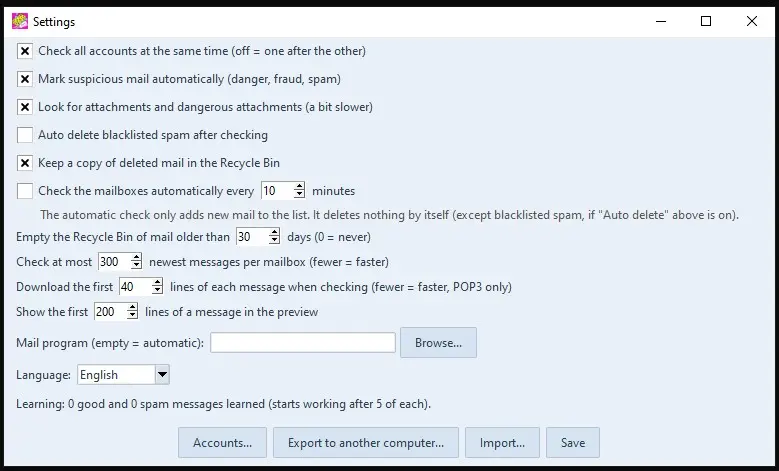
| Setting | Default | Explanation |
|---|---|---|
| Language | Automatic | Hebrew or English. The change takes effect after you restart the program. |
| Check all accounts at the same time | On | Checks all mailboxes in parallel. Off = one after the other. |
| Mark suspicious mail automatically | On | Automatic detection of dangerous attachments, scams and spam. |
| Look for attachments | On | Looks for attachments and dangerous attachments (a bit slower). |
| Auto delete blacklisted spam | Off | Automatically deletes spam from the Blacklist. |
| Keep a copy in the Recycle Bin | On | Saves a copy before deleting. |
| Empty the Recycle Bin older than | 30 days | Automatic cleaning of the Bin. 0 = never. |
| Check the mailboxes automatically every | Off (10 minutes) | Automatic check every few minutes (1 to 1440). |
| Download only messages from the last | Off (7 days) | The same days filter as the filter bar in the main window. 0 = today only. |
| Check at most | 300 messages | The number of newest messages checked in each mailbox. Fewer = faster. |
| Download the first … lines | 40 lines | How many lines to download from each message during a check (POP3 only). |
| Show the first … lines | 200 lines | How many lines to show in the preview. |
| Mail program | Empty = automatic | The path to your mail program. |
Adding a mailbox
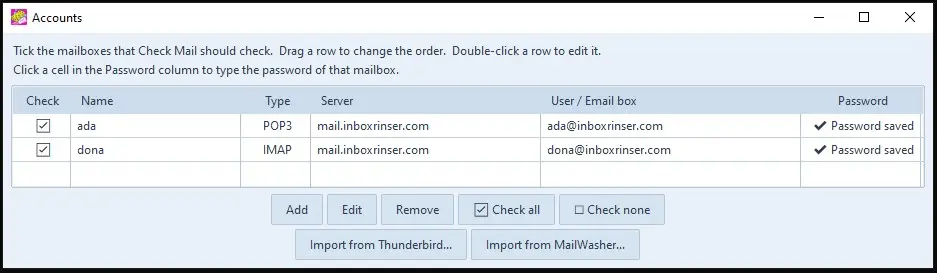
Open Settings → Accounts.
- Double-click a row = edit.
- Drag a row to change the order.
- The ✔ mark decides which mailboxes are checked by Check Mail.
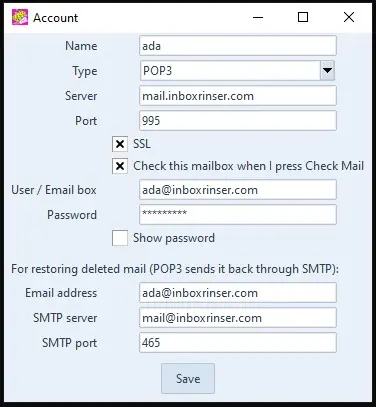
| Field | Explanation |
|---|---|
| Name | A unique name for the mailbox. |
| Type | POP3 or IMAP. |
| Server / Port / SSL | The port updates by itself. POP3: 995 (with SSL) or 110. IMAP: 993 (with SSL) or 143. |
| User / Password | User name and password. Show password shows the password. For Gmail use an app password, not your normal password. |
| Email address | The address of the mailbox. Used for restoring messages. |
| SMTP server / port | For restoring with POP3. Default: the same server, port 465. |
Importing mailboxes from another program
The Accounts window has two buttons: Import from Thunderbird... and Import from MailWasher.... They bring in the mailbox settings (server, port and user) without the passwords. You type the password again for each mailbox.
The Password column
The Accounts window shows for each mailbox whether a password is saved: ✔ Password saved or ✖ No password. To type a password without opening the edit form, click the cell in the Password column. The password is hidden while you type, and it is saved encrypted.
Free trial and license
- On the first run a 30-day free trial starts, with no payment details. The window title shows how many days are left.
- When the trial ends, Check Mail and Rinse Mail stop until you enter a license key. Your settings, lists and Recycle Bin stay safe.
- Putting the computer clock back, or deleting the settings file, does not give a new trial.
Entering a license
- Go to Help → Enter license...
- Type the e-mail address you bought with, and paste the whole license key.
- Click Activate.
No license yet? Help → Buy a license opens the purchase page on the website.
How the license works
- One license works on up to 3 computers. It is a yearly subscription that renews automatically, and you can cancel at any time.
- The program checks the license with the website server every 3 days.
- With no internet connection the license keeps working for up to 30 days after the last successful check.
- If the license was cancelled, expired or does not match the e-mail, the program warns you and removes it from the computer. The message "already used on 3 computers" means you need to contact support on the website.
Moving to a new computer
- On the old computer: Settings → Export to another computer...
- Choose a password for the file (at least 8 characters). There is no way to recover it, so write it down.
- You can include the Recycle Bin too. A
.rinserfile is created. - Move the file to the new computer.
- On the new computer: Settings → Import... and enter the password.
Security
- Mailbox passwords are stored encrypted with Windows encryption. Only the same Windows user on the same computer can read them. This is why you do not copy the settings files to another computer, and use export and import instead.
- If a password cannot be read on the current computer, the program warns you and keeps it as it is until it is back on the right computer.
- Without Windows the encryption is not available, and the passwords are stored as plain text.
- The license check sends the website server only an e-mail address, a key, an anonymous computer id and a version.
- The export file is encrypted with strong encryption (AES-GCM) based on the password you chose.
- Safe HTML view (opens in the browser) – scripts, remote images and forms are blocked, and a yellow "safe view" bar is shown. You still need to be careful with links.
Keyboard shortcuts
| Key | Action |
|---|---|
| F5 | Check Mail |
| F6 | Rinse Mail – clean and delete |
| F7 | Mail Program – open your mail program |
| - | Add the sender to the Blacklist |
| D | Mark or unmark for deletion |
| Ctrl+Q | Quick reply |
FAQ and good things to know
An important message was marked as spam. What do I do?
In the Action column choose GOOD. You can also add the sender to the Friends list, and then it will not be marked again.
I deleted a message by mistake
Open the Recycle Bin and click Restore to mailbox. Check that the message is not older than 30 days (or the time you set). Messages that were marked as danger or a scam are not kept in the Bin, so they cannot be restored.
Why don't all my messages appear?
Only the newest messages are checked (by default 300 in each mailbox). Also check the days filter in the filter bar, and Check at most in the settings.
A sophisticated scam got through without a mark
The check looks only at the headers and the beginning of the message, so a sophisticated scam can get through. It is always worth looking before you delete, and not clicking links you do not know.
A large message in the Recycle Bin looks cut off
A POP3 message larger than 1 MB is kept in the Bin as an opening part only (the first 150 lines).
"HTML view" does not show the message inside the window
This is on purpose: HTML view opens the message as a safe web page in your browser. There is nothing more to install.
Export or import shows a message about installing something
The cryptography component is missing. The program shows the command to install it.
The trial ended. Did I lose my settings?
No. Your settings, lists and Recycle Bin stay. Only Check Mail and Rinse Mail stop until you enter a license.
Where are my files kept?
| File | Contents |
|---|---|
inboxrinser.json | Settings, Friends list, Blacklist, learning data |
inboxrinser_accounts.json | The mailboxes and passwords (encrypted) |
recycle | Copies of deleted messages (.eml files) |
The files are in the program's folder.